
24 Sep 2026· 2 min read· By ComDove Team
Getting started with the WhatsApp Business Platform
What you need before your first message: a number, a verified business, approved templates — and what the API calls look like.
The WhatsApp Business Platform lets a business message customers from its own number, with a whole team working from it. This guide covers what you need first, and what happens underneath when a message is sent.
What you need
- A phone number that can receive a verification code by SMS or call. If it's already on the WhatsApp Business app, check with us first.
- A Meta Business account for your company. Verifying the business is what lets your messaging limits grow.
- Approved message templates for anything you send first — see our template guide.
Connecting your number
In ComDove you connect a number through Meta's Embedded Signup: you log in with Facebook, pick or create your business, and verify the number with a code. The number stays yours.
- Start the signup and log in with the Facebook account that manages your business.
- Choose the business, then add and verify the phone number.
- Set the display name customers will see. Meta reviews it.
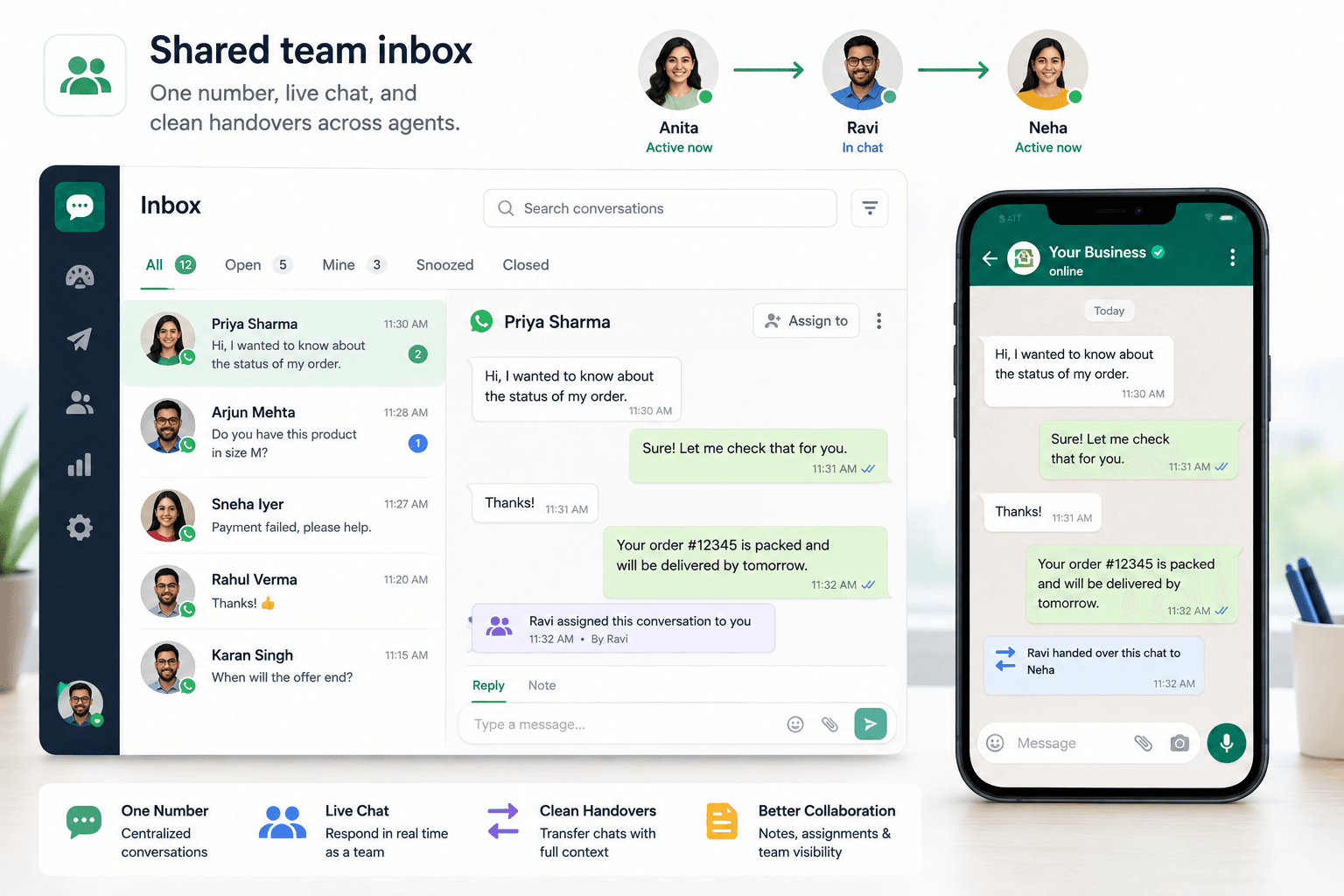
Once the number is connected, every conversation lands in one shared inbox, like the one above (sample data).
What a message looks like underneath
You never have to call the API yourself, but it helps to see it. Sending an approved template is one request to Meta's Cloud API — here the hello_world template every new account gets:
curl -X POST "https://graph.facebook.com/v21.0/PHONE_NUMBER_ID/messages" \
  -H "Authorization: Bearer ACCESS_TOKEN" \
  -H "Content-Type: application/json" \
  -d '{
    "messaging_product": "whatsapp",
    "to": "919876543210",
    "type": "template",
    "template": { "name": "hello_world", "language": { "code": "en_US" } }
  }'
When a customer replies
Replies arrive as a webhook: Meta sends a JSON payload like this one to the platform, which puts the message in your inbox.
{
  "object": "whatsapp_business_account",
  "entry": [{
    "id": "WHATSAPP_BUSINESS_ACCOUNT_ID",
    "changes": [{
      "field": "messages",
      "value": {
        "messaging_product": "whatsapp",
        "metadata": { "display_phone_number": "919876543210", "phone_number_id": "PHONE_NUMBER_ID" },
        "messages": [{
          "from": "919812345678",
          "id": "wamid.HBgM...",
          "timestamp": "1758700000",
          "type": "text",
          "text": { "body": "Hi, is the blue kurta available in M?" }
        }]
      }
    }]
  }]
}
For the full reference, see Meta's Cloud API documentation. Questions about your setup? Talk to us.
More insights
- Writing WhatsApp message templates that get approvedTemplates are how a business starts a conversation. Pick the right category, keep variables clear, and say who you are.
- Running a broadcast campaign without spamming your customersOnly message people who opted in, send what they asked for, and watch your quality rating.
- A shared team inbox: who answers whatOne number, many people. Assign each conversation an owner and answer inside the 24-hour window.